XL Long bed 3D-printer conversion
EXTRUSION
XL Long bed 3D-printer conversion
EXTRUSION
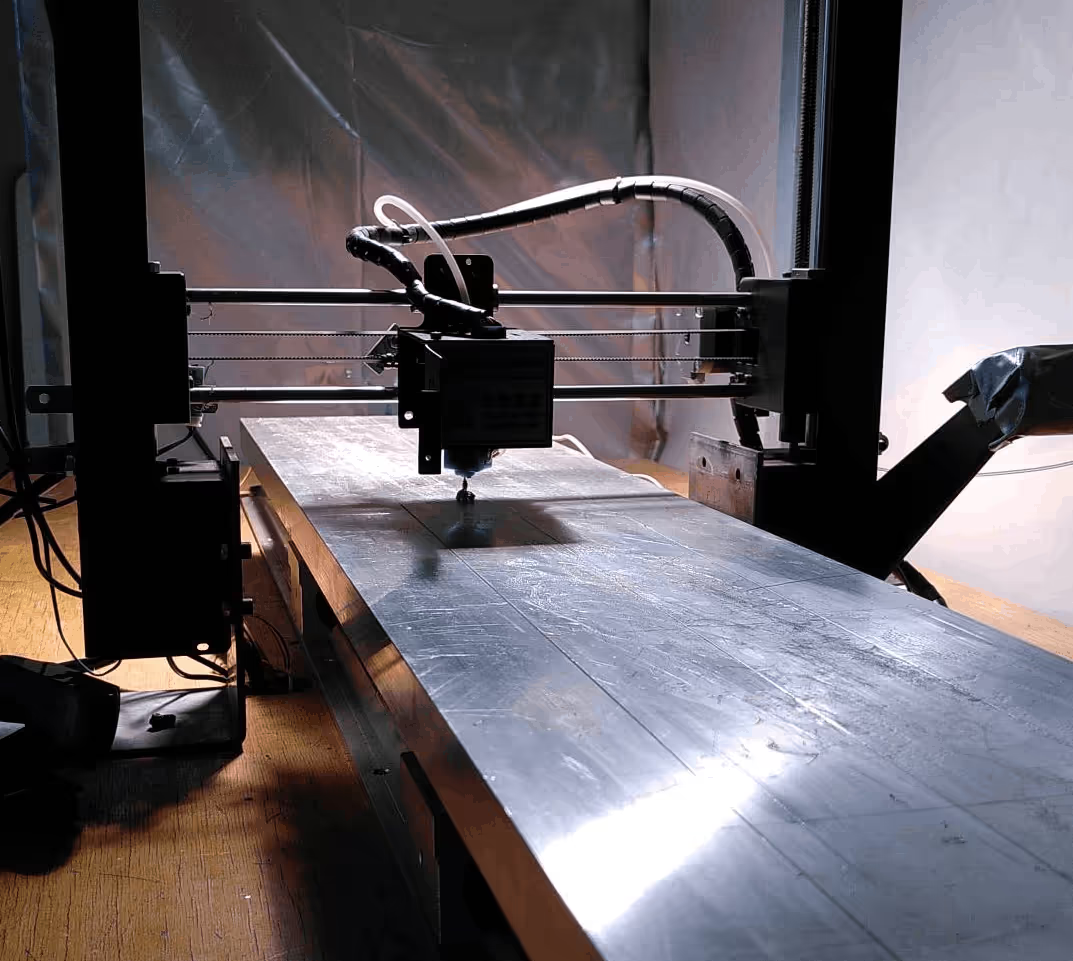
This how-to will show how to fit a longer bed on any flashable 3D-printer. We used the long bed ourselves to print windturbine blades.
Browse Files
Table of Contents
Necessary for this build:
Basics:
Movement system (Y-axis):
The heated bed:
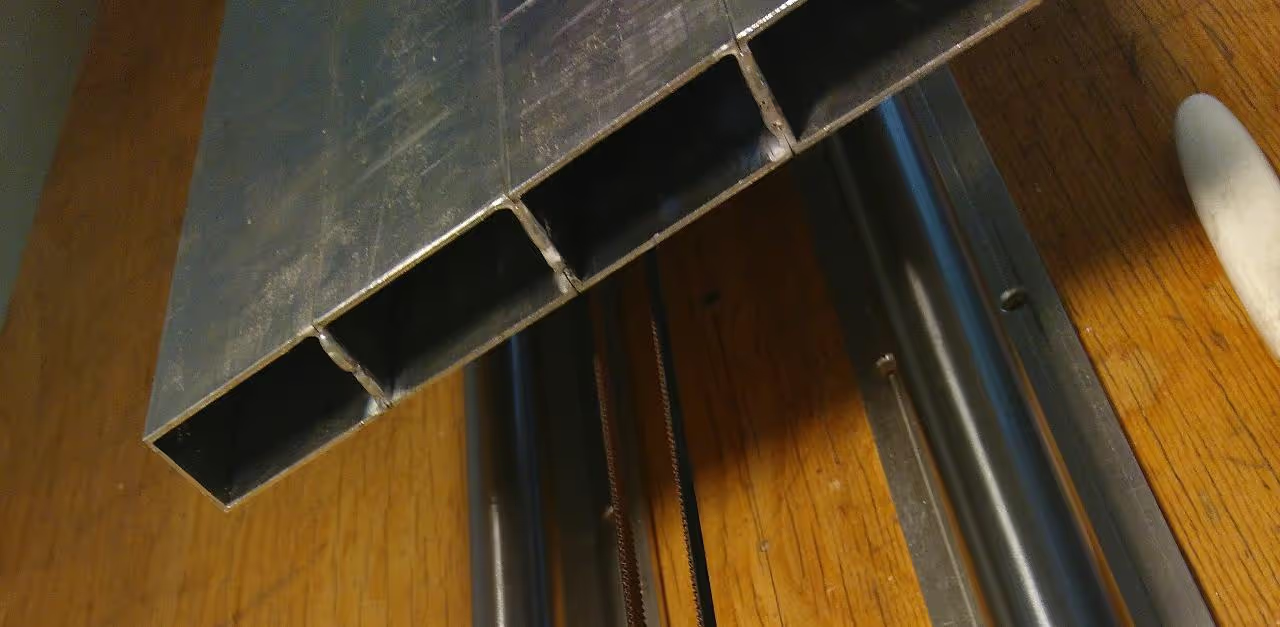
5 aluminum profiles of 40x15mm
NiCr heating wire of 60 ohm 3A, 5 or 10m length
glassfiber sleeving to insulate the heating wire (resistant to 150 degrees Celsius or more).
16 * 8mm threaded rods of 5cm length + 32 nuts for both sides
(recommended) glassfiber cloth (50 x 50cm)
basic tools: a drill, screws, bolts and nuts
Weld the aluminium profiles so they are connected and make a platform of 1m * 20cm. Preferabbly this happens on the ends only so they are not skewed or distorted by the welding process.
Drill holes for the bearing holders. They should be 1m apart.
Install the bearings approximately 5cm from the bed
Put the glassfiber sleeve over the NiCr heating wire and pull it through the hollow spaces of the aluminum bed
(Recommended) Put some glassfiber cloth at the end of each alumium profile so the air stays inside
Make sure the table is flat and can't bend or move, because this will have a great impact on the printability. Probably the rails will become dusty because of the installation process, so make sure to clean them and apply some TPFE-oil before moving to the next step.
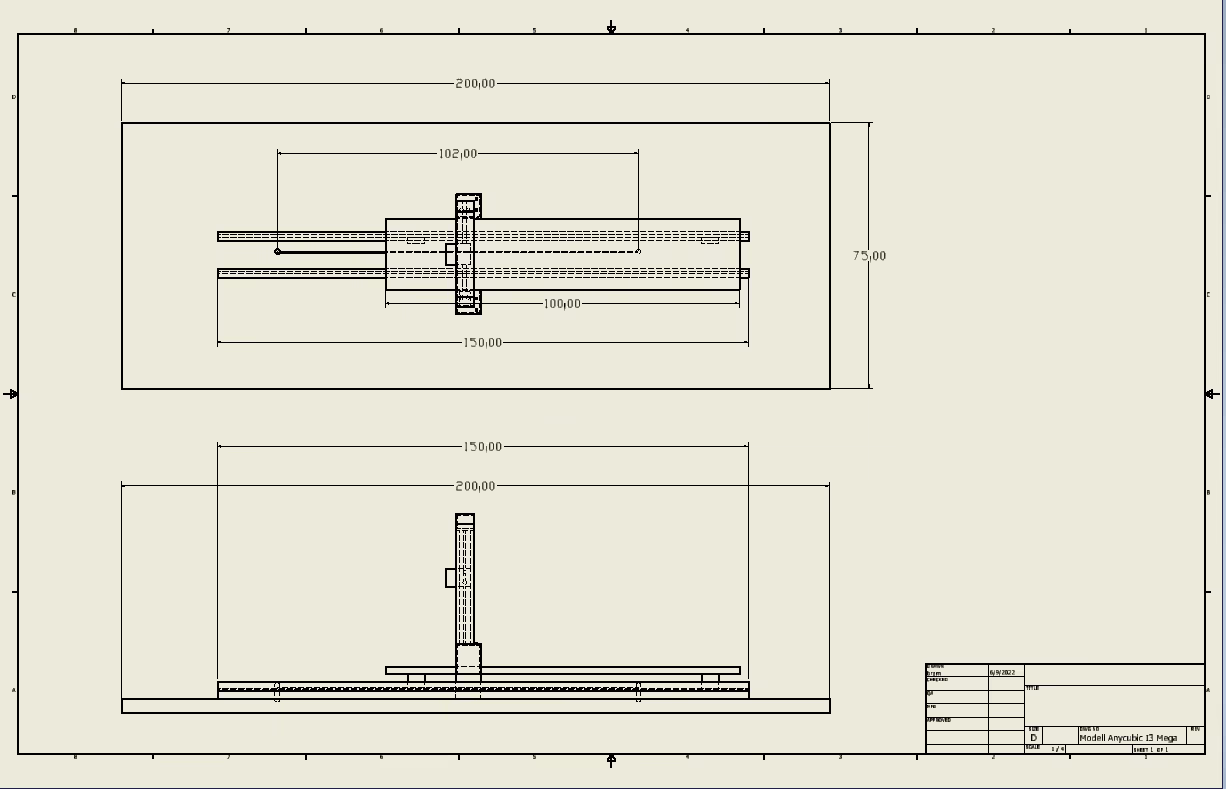
Before proceeding to the next step, check out the technical drawing on how the rest of the parts should be set-up.
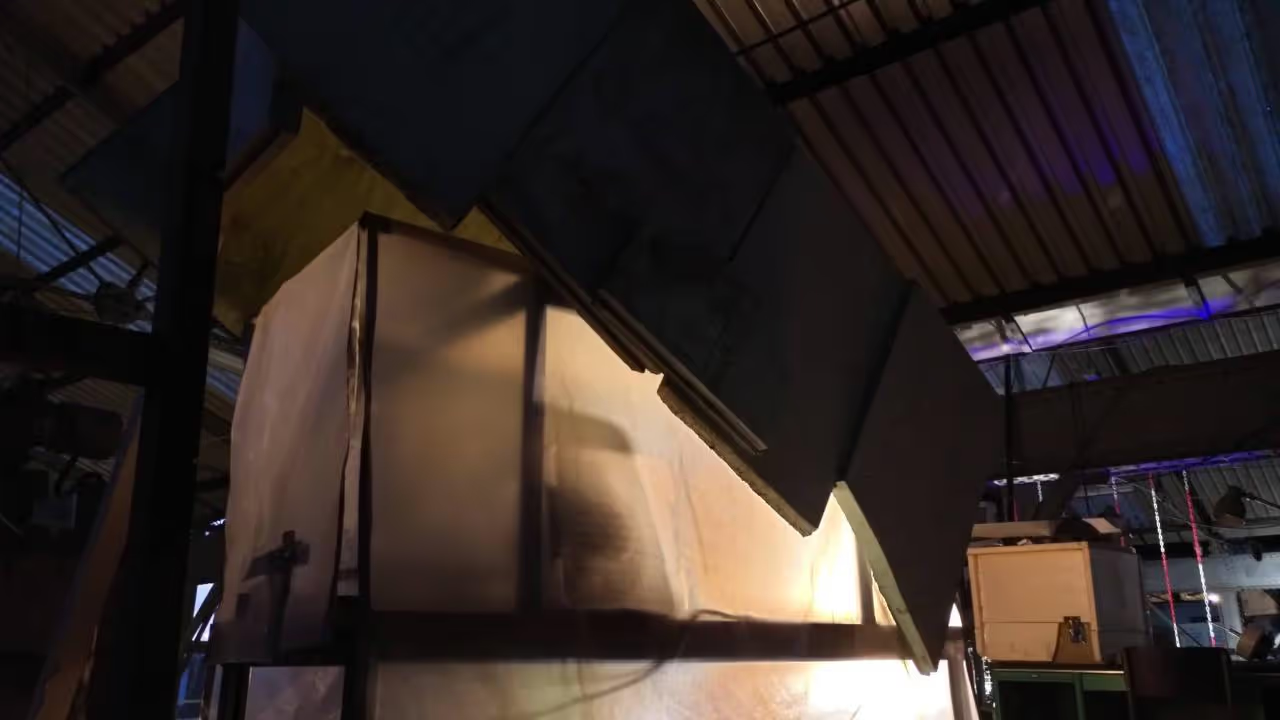
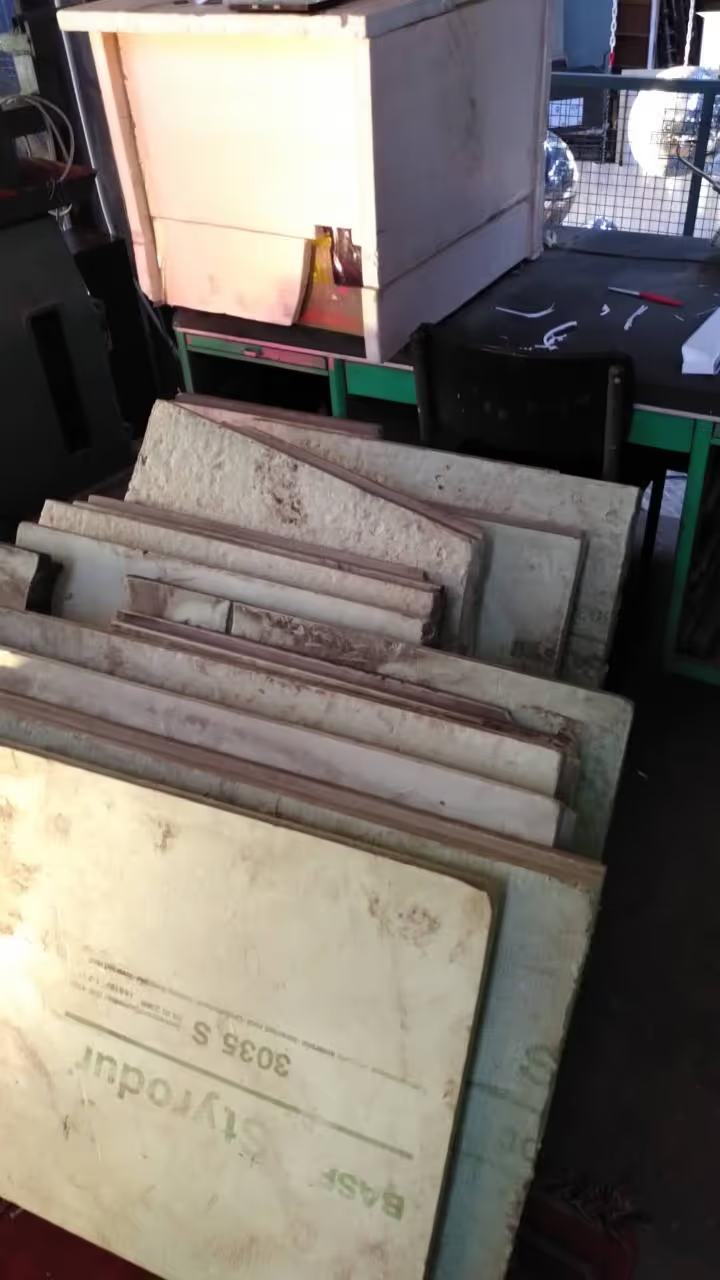
Use your creativity to make a cover over the printspace. Plastic foil can already be enough to trap the warm air inside, depending on the room temperature. We also had good results with cardboard and left-over BASF Styropur, which is sturdy enough to not need a frame.
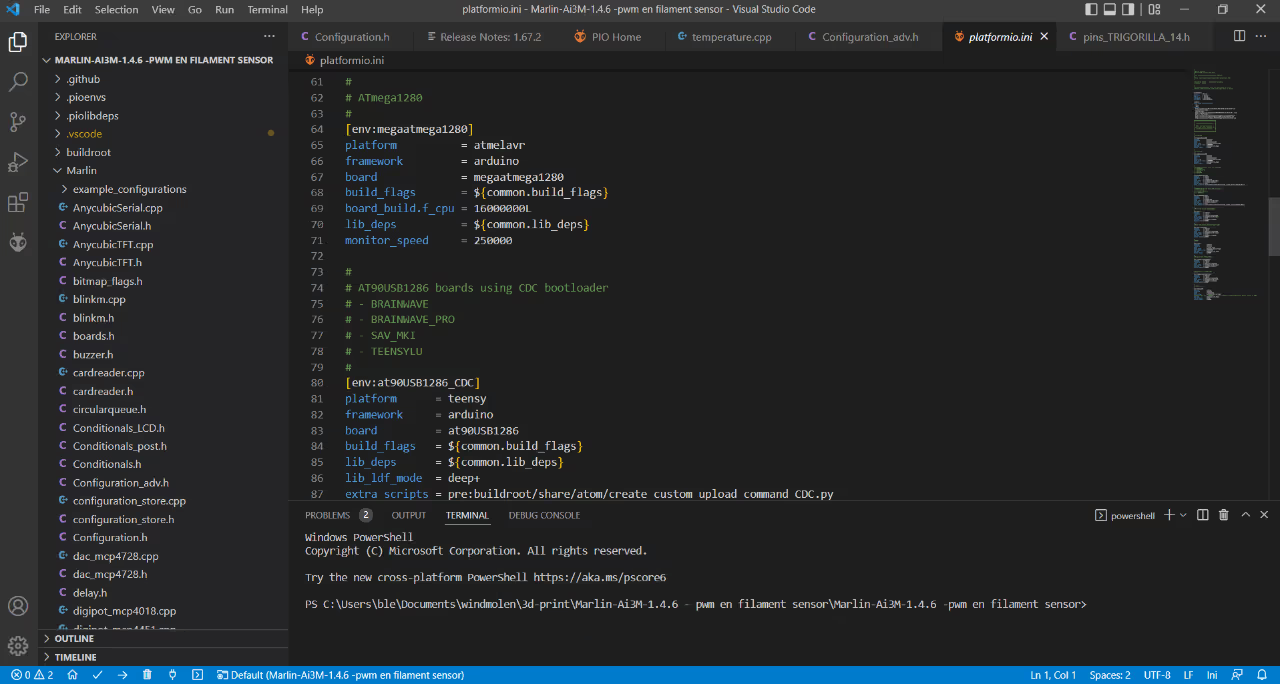
You can find an adapted version specially for the Anycubic I3 Mega S here: github.com: github.com/davidramiro/Marlin-Ai3M Higher versions had a bugged manual bed leveling system, which we'll really need because it's easy to not have the bed exactly parallel to the table.
Install VSCode and open the code there. Change the following properties in configuration.h to let the printer know it has a bigger bed and higher build envelope: a. Y_BED_SIZE: 999 b. MAX_Z_HEIGHT: 260
Connect your printer mainboard with USB. VScode will automatically connect to the right serial port. Press the small arrow in the bottom left corner to start the uploading process.
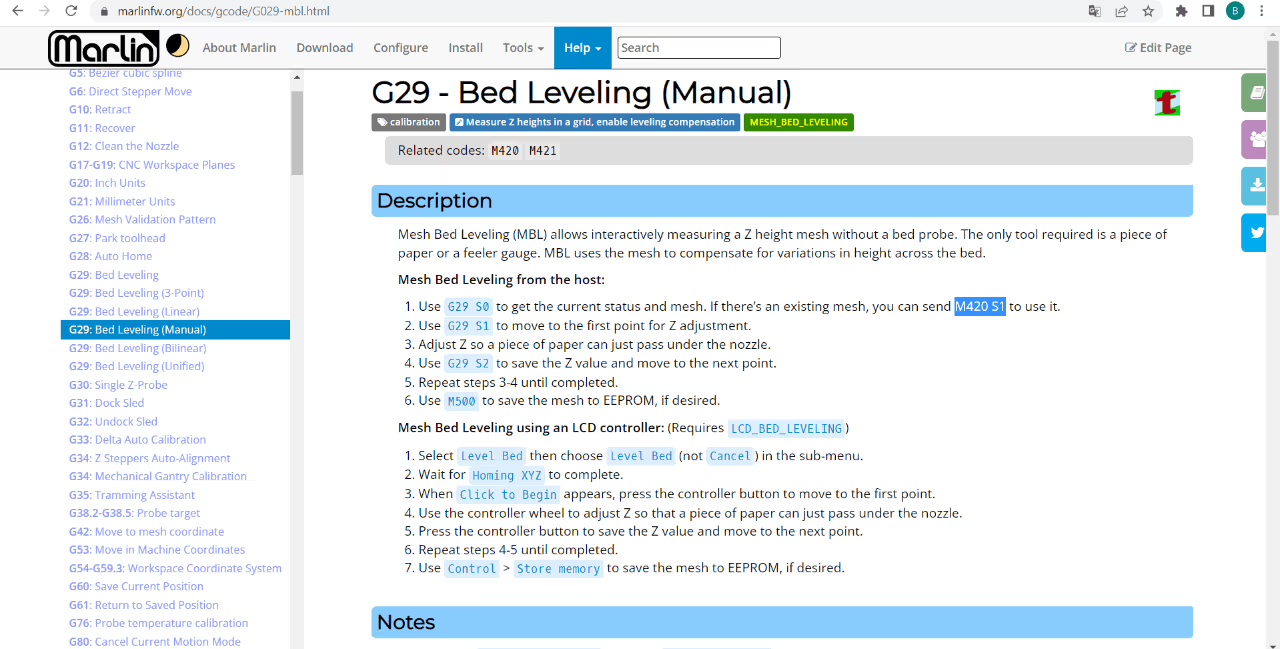
Ok, this is not the 'manually' as you used to know, turning the 4 knobs on the bottom of the printbed. Instead we will run the G29 S1 command, followed by G29 S2 until it finishes. The printer will calculate a grid of 5x5 points over the printbed and move to each position, where you'll be able to lower or heighten the nozzle on the z-axis. (The number of points in the grid can easily be changed in the firmware)
More on the G29 command for Marlin: marlinfw.org: marlinfw.org/docs/gcode/G029-mbl.html
After you finished all 25 points, the printer will make a bleep sound and return the printhead to its 0,0 position. Be sure to save the grid with the M500-command. Also, before each print you should call M420 S1 to enable mesh-bed-leveling and fetch the modified z-coordinates. We can recommened to put this in the custom g-code section of your slicer to be sure to have it called before each print.
Printing big might take some time to get everything right. For example there might be some adhesion problems arising while printing. The bigger the object gets, the more power it has to warp and pull of off the bed. We had good result printing rPET, PETG and PLA with Formfutur's Magigoo as an adhesive. Certainly PET(G) sticks very well and we use a first layer of PET(G) to print ABS.
Profit
This long bed conversion for example permits the printing of windturbine blades which allows yo uto build your own windturbines. Check our other tutorial to know more about it!